July 16, 2026 · WPHeka Team · 30 min read
wp-env: The Modern WordPress Development Environment
If you’ve been building WordPress plugins for more than a few years, you’ve almost certainly lost days of your life to local environments. A MAMP install running PHP 7.4 while your client’s host runs 8.2. A XAMPP MySQL service that won’t start because Skype grabbed port 3306. Three “local sites” that all share one PHP binary, so testing a compatibility fix means changing a global setting and hoping you remember to change it back. A new hire who spends their entire first week getting localhost to serve a WordPress site.
Docker fixed the underlying problem (isolated, disposable, version-pinned environments), but raw Docker Compose brought its own tax. You end up maintaining a docker-compose.yml, an nginx config, a custom PHP image with the right extensions, a WP-CLI service and a pile of shell scripts to glue it together. Every plugin repo reinvents this stack slightly differently.
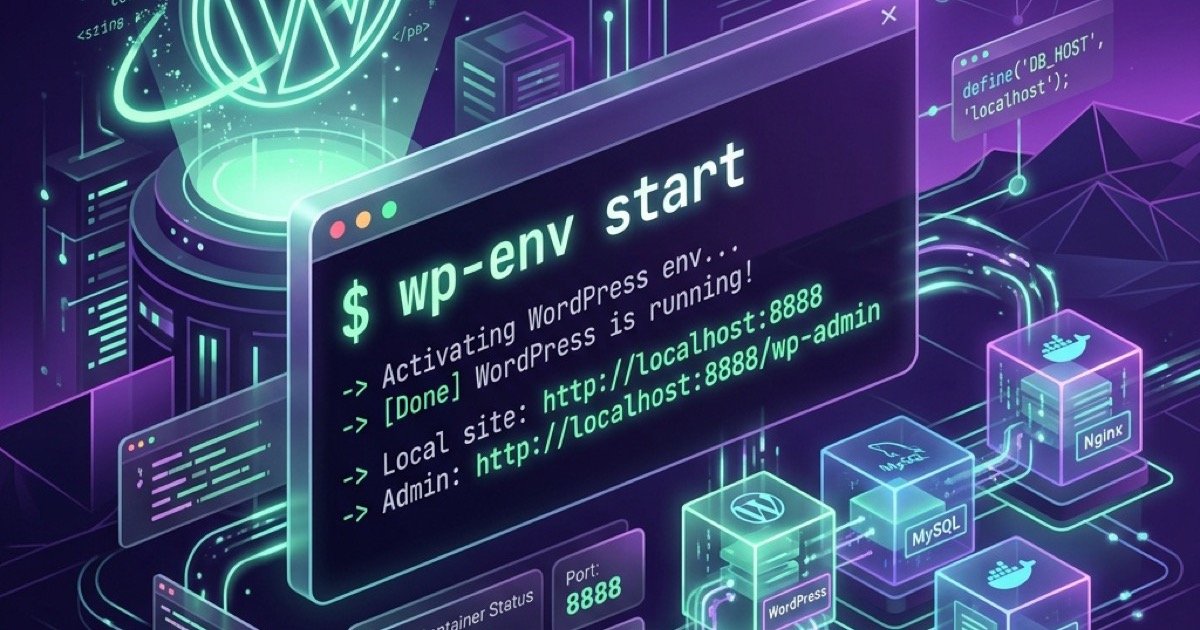
wp-env, published as @wordpress/env, is WordPress’s official answer. It wraps Docker in a single npm package and a single JSON config file, giving you a running WordPress site with one command. It was built by WordPress contributors for Gutenberg development, and it has quietly become the best default WordPress development environment for plugin work.
A quick note on naming before we start, because it trips people up: there is also a newer repository called WordPress/experimental-wp-dev-env. That project is not wp-env. It’s an experimental Electron desktop app (the “Core Dev Environment Toolkit”) that bootstraps a WordPress core contribution environment using WordPress Playground, with zero prerequisites. It matters for where local development is heading, and we’ll cover it in the roadmap section. Everything else in this article is about @wordpress/env, the Docker-based tool you’ll actually use for plugin development today.
What Is wp-env?
wp-env is an official WordPress project, maintained by WordPress contributors inside the Gutenberg monorepo at packages/env, and published to npm as @wordpress/env. As of mid-2026 it’s on major version 11 and receives releases on the regular Gutenberg package cadence.
In one sentence: wp-env is an npm package that generates and manages a Docker-based WordPress environment from a declarative JSON file.
The important properties:
- Official. It’s built by the same contributor teams that build Gutenberg and WordPress core. When core changes, wp-env follows.
- Docker-based. Under the hood it produces a Docker Compose configuration and standard containers: WordPress (Apache + PHP), MySQL, WP-CLI and optionally phpMyAdmin. You never write that Compose file yourself.
- Declarative and reproducible. A
.wp-env.jsonfile committed to your plugin repo fully describes the environment: WordPress version, PHP version, plugins, themes,wp-config.phpconstants, mounted directories. Every developer and every CI runner gets an identical site. - Two environments by default. Every
wp-env startspins up a development site (port 8888) and a separate tests site (port 8889) with its own database, so your PHPUnit and end-to-end runs never trash your manual-testing data.
If you’ve used docker-compose.yml for WordPress before, think of .wp-env.json as the same idea at a higher altitude: you declare WordPress concepts (core version, plugins, constants) instead of infrastructure concepts (images, volumes, networks).
Why WordPress Created It
wp-env exists because Gutenberg development made the old ways untenable. Hundreds of contributors across every operating system needed to run the same trunk build of WordPress with the same plugin checkout and the same test suite. “Install MAMP and follow this 40-step wiki page” does not scale to that.
The goals that shaped it are exactly the ones plugin teams have:
- Consistency. “Works on my machine” disappears when the machine is defined in JSON. A bug reproduces the same way for everyone.
- Onboarding. A new contributor runs
npm install && npx wp-env startand has a working site in minutes. For agencies and plugin companies, this is the single biggest practical win: environment setup stops being a first-week project. - Testing. The dedicated tests environment, database reset commands and WP-CLI access were designed for PHPUnit and Playwright from day one, not bolted on.
- Gutenberg and plugin development. wp-env automatically mounts the current directory as a plugin or theme based on its file headers. It was built for the “I’m working on this one plugin” workflow.
- CI/CD compatibility. Because it’s just Node + Docker, the same environment that runs on a laptop runs unchanged in GitHub Actions. Gutenberg’s own CI uses it, which means it’s battle-tested at a scale most plugin teams will never hit.
How It Works Internally
Understanding the internals pays off the first time something breaks.
When you run wp-env start, the tool:
- Reads configuration. It merges
.wp-env.json, an optional.wp-env.override.json(for local, git-ignored overrides) andWP_ENV_*environment variables. - Resolves sources. Each
core,pluginsandthemesentry can be a local path, a GitHub reference (WordPress/gutenberg#trunk) or a ZIP URL. Remote sources are downloaded and cached under the wp-env home directory (~/.wp-envby default). - Generates a Docker Compose file in a hidden per-project directory (hashed from your project path), defining the containers, volumes and network.
- Starts containers and waits for MySQL to accept connections.
- Configures WordPress via WP-CLI inside the containers: installs core, writes
wp-config.phpconstants from yourconfigblock, activates the declared plugins and themes and sets up the separate tests site. - Runs your
afterStartlifecycle script, if you defined one.
The running architecture looks like this:
Host machine
│
├── your-plugin/            ← bind-mounted into both WordPress containers
│
├── localhost:8888 ──► [ wordpress ]  Apache + PHP  ─┐
├── localhost:8889 ──► [ tests-wordpress ]           ├──► [ mysql ]
│                      [ cli ] [ tests-cli ]  WP-CLI ─┘    [ tests-mysql ]
└── localhost:<rand> ─► [ phpmyadmin ]  (optional)

   Volumes: WordPress core files, MySQL data (persist across stop/start)
   Bind mounts: your plugin/theme source, custom `mappings`
Key points:
- Your code is bind-mounted, not copied. Edit a file in your IDE and the change is live immediately: no sync step, no rebuild.
- Ports: development on
8888, tests on8889by default. MySQL is not exposed to the host unless you setmysqlPort, which neatly eliminates the classic port-3306 conflict. - WP-CLI ships in dedicated
clicontainers, sowp-env run cli wp <anything>works with zero setup. Composer and PHPUnit are available there too. - Networking is internal. Containers talk to each other on a Docker network (
mysqlresolves as a hostname inside the WordPress container); only the HTTP ports you configure are published to the host.
There is also an experimental --runtime=playground flag that swaps Docker for a WebAssembly runtime (SQLite instead of MySQL, no wp-env run support). It’s a glimpse of the future (more on that in the roadmap section), but for plugin development in 2026, Docker is the runtime you want.
Installation
Prerequisites:
- Node.js (an actively supported LTS; use nvm if you juggle versions)
- Docker Desktop (macOS/Windows) or Docker Engine (Linux). On Windows, use the WSL2 backend; it is dramatically faster than the legacy Hyper-V file sharing.
Install wp-env globally, or better, per-project:
# Global
npm install -g @wordpress/env

# Per-project (recommended: pins the version for the whole team)
npm install --save-dev @wordpress/env
With a per-project install, add a script to package.json:
{
  "scripts": {
    "wp-env": "wp-env"
  }
}
Day-to-day commands:
npx wp-env start            # create + start the environment
npx wp-env start --update   # re-download sources and reconfigure
npx wp-env stop             # stop containers (data persists)
npx wp-env reset all        # reset the databases (fresh WordPress install)
npx wp-env reset tests      # reset only the tests database
npx wp-env cleanup          # remove containers/volumes, keep cached images
npx wp-env destroy          # remove everything: containers, volumes, images
npx wp-env logs             # tail PHP and Docker logs
npx wp-env status           # is it running?
First start output looks like:
✔ Downloading WordPress. (in 12s 300ms)
✔ Started the docker containers. (in 8s 122ms)
✔ Configured WordPress. (in 15s 401ms)

WordPress development site started at http://localhost:8888
WordPress test site started at http://localhost:8889
MySQL is listening on port 49153

 ✔ Done! (in 41s 210ms)
Log in at http://localhost:8888/wp-admin with admin / password.
Note: older tutorials show
wp-env clean, but the command isresetin current versions. If a blog post and the official README disagree, trust the README; wp-env moves fast.
Understanding .wp-env.json
Drop a .wp-env.json in your plugin root and commit it. Here’s a realistic one, followed by a field-by-field breakdown:
{
  "core": "WordPress/WordPress#6.8",
  "phpVersion": "8.2",
  "plugins": [
    ".",
    "https://downloads.wordpress.org/plugin/woocommerce.latest-stable.zip"
  ],
  "themes": [ "https://downloads.wordpress.org/theme/twentytwentyfive.zip" ],
  "port": 8888,
  "testsPort": 8889,
  "config": {
    "WP_DEBUG": true,
    "WP_DEBUG_LOG": true,
    "SCRIPT_DEBUG": true,
    "WP_ENVIRONMENT_TYPE": "local",
    "MY_PLUGIN_DEV_MODE": true
  },
  "mappings": {
    "wp-content/mu-plugins": "./tools/mu-plugins",
    "wp-content/uploads": "./tools/fixtures/uploads"
  },
  "lifecycleScripts": {
    "afterStart": "wp-env run cli wp rewrite structure '/%postname%/'"
  },
  "env": {
    "tests": {
      "config": { "WP_DEBUG": false },
      "plugins": [ "." ]
    }
  }
}
core: WordPress source.nullmeans latest stable release. Accepts a GitHub ref (WordPress/WordPress#6.8), a local path to a core checkout or a ZIP URL (which is how you get betas and nightlies).phpVersion: PHP version string like"8.1"or"8.3".nulluses the default bundled with the WordPress image. This one field replaces an entire afternoon of compiling PHP or juggling Homebrew formulas.plugins: array of plugin sources, installed and activated."."means “this repo is a plugin: mount and activate it.” Mix local paths, GitHub refs and ZIP URLs freely.themes: same source formats; installed but you choose activation (via WP-CLI or the admin).port/testsPort: host ports for the two sites. Override per-machine withWP_ENV_PORTrather than editing the committed file or pass--auto-portto dodge conflicts.mysqlPort/phpmyadmin/phpmyadminPort: opt-in database exposure."phpmyadmin": trueadds a phpMyAdmin container;mysqlPortpublishes MySQL so TablePlus or Sequel Ace can connect.config: becomesdefine()constants inwp-config.php. Defaults already includeWP_DEBUG: trueandSCRIPT_DEBUG: truein development. SettingWP_ENVIRONMENT_TYPEto"local"is worth the extra line: your plugin can checkwp_get_environment_type()to skip production-only behavior (license pings, outbound emails, cache warming) without ad-hoc constants.mappings: mount any host directory to any path in the container. Perfect for mu-plugins, dropins or fixture uploads that aren’t “a plugin” or “a theme.”multisite:trueconverts the install to multisite. If your plugin claims multisite support, this is how you actually test it.lifecycleScripts: shell commands run atafterStart,afterReset,afterCleanupandafterDestroy. Use them to seed data, flush rewrites or bootstrap E2E fixtures.env: per-environment overrides underdevelopmentandtestskeys. The classic use: keep WooCommerce active in development but strip the tests site down to just your plugin so unit tests run against a minimal install.
Beginner mistake worth calling out: editing .wp-env.json and expecting a running environment to pick it up. Configuration changes require wp-env start again (add --update if sources changed).
The Plugin Development Workflow
Here’s what a full working session looks like on a real plugin. This is the industry-standard shape of a wp-env workflow, and it’s the one the Gutenberg repo itself uses:
# 1. Clone and install
git clone git@github.com:your-org/your-plugin.git
cd your-plugin
npm install
composer install

# 2. Start the environment (reads .wp-env.json)
npx wp-env start

# 3. Plugin is already activated because "plugins": ["."]
#    Verify with WP-CLI:
npx wp-env run cli wp plugin list

# 4. Run the PHPUnit suite against the tests site
npx wp-env run tests-cli --env-cwd=wp-content/plugins/your-plugin
  ./vendor/bin/phpunit

# 5. Run Playwright E2E tests against http://localhost:8889
npm run test:e2e

# 6. Watch mode for JS/CSS while you work
npm start        # typically wp-scripts start

# 7. Debug when something's wrong
npx wp-env logs                      # PHP errors, Apache logs
npx wp-env start --xdebug            # step debugging (see the Debugging section)

# 8. Reset to a clean slate before final verification
npx wp-env reset all

# 9. Commit, including .wp-env.json, so CI and teammates match you
git add . && git commit
The loop that matters is 4–6: because your source is bind-mounted, you edit code, tests see it instantly, the browser sees it instantly. There is no deploy step inside the inner loop.
Using wp-env with an Existing Plugin
Adding wp-env to a plugin that already exists takes about five minutes. A sensible resulting structure:
my-plugin/
├── .wp-env.json           ← committed environment definition
├── .wp-env.override.json  ← git-ignored personal overrides (ports, extra plugins)
├── package.json           ← @wordpress/env in devDependencies
├── composer.json          ← phpunit, wp coding standards
├── my-plugin.php          ← main plugin file (header makes "." mountable)
├── includes/
├── src/                   ← JS source
├── tests/
│   ├── phpunit/
│   └── e2e/
└── .github/workflows/ci.yml
Minimal config to get started:
{
  "core": null,
  "plugins": [ "." ]
}
That’s genuinely all you need: latest WordPress, your plugin mounted and active, two sites, WP-CLI, done. Grow the file as real requirements appear; don’t start by cargo-culting a 60-line config from another project.
The .wp-env.override.json file deserves more use than it gets. It merges over the committed config, so individual developers can bump their port or add Query Monitor locally without dirtying the repo:
{
  "port": 8890,
  "plugins": [
    ".",
    "https://downloads.wordpress.org/plugin/query-monitor.latest-stable.zip"
  ]
}
Add it to .gitignore and tell your team it exists.
Running Multiple WordPress Versions
Compatibility testing is where wp-env embarrasses every GUI-based local tool. The core field accepts anything:
{ "core": null }                                    // latest stable
{ "core": "WordPress/WordPress#6.7" }               // previous major
{ "core": "https://wordpress.org/nightly-builds/wordpress-latest.zip" }  // trunk nightly
{ "core": "https://wordpress.org/wordpress-6.9-beta1.zip" }              // beta
You rarely want to edit the file to switch, though. Use the environment variable override:
WP_ENV_CORE="WordPress/WordPress#6.7" npx wp-env start --update
# run your tests...
WP_ENV_CORE="https://wordpress.org/nightly-builds/wordpress-latest.zip" npx wp-env start --update
A practical policy for plugin teams, and the one the “Tested up to” header implies you should follow: test against latest stable, one major back and the nightly before every release. Nightly testing is how you find out a core change breaks you before your support inbox does, and with wp-env it’s a one-line CI matrix entry rather than a maintained “canary site.”
Testing Different PHP Versions
Same story, one field:
WP_ENV_PHP_VERSION=8.0 npx wp-env start --update
WP_ENV_PHP_VERSION=8.1 npx wp-env start --update
WP_ENV_PHP_VERSION=8.2 npx wp-env start --update
WP_ENV_PHP_VERSION=8.3 npx wp-env start --update
WP_ENV_PHP_VERSION=8.4 npx wp-env start --update   # as WordPress support matures
Why bother? Because your users’ hosts are a scatter plot. WordPress.org stats consistently show sites spread across every PHP version from ones past end-of-life to the current release. The failure modes differ by version: PHP 8.0 removed things 7.x tolerated; 8.1 introduced deprecation notices (null passed to non-nullable internal function parameters is the classic) that flood debug.log on real sites; 8.2 deprecated dynamic properties, which breaks a shocking amount of older plugin code; 8.3 and 8.4 continue tightening.
A deprecation notice isn’t cosmetic: with WP_DEBUG_DISPLAY on, it’s output before headers, and suddenly your plugin “breaks checkout.” Testing on the newest PHP with WP_DEBUG: true catches these for free.
Verify what’s actually running:
npx wp-env run cli php -v
npx wp-env run cli wp eval 'echo PHP_VERSION;'
WooCommerce Development
For WooCommerce extension developers, wp-env removes the most tedious part of the job: maintaining multiple stores in different states. Base config:
{
  "core": null,
  "phpVersion": "8.2",
  "plugins": [
    "https://downloads.wordpress.org/plugin/woocommerce.latest-stable.zip",
    "."
  ],
  "lifecycleScripts": {
    "afterStart": "wp-env run cli -- wp option set woocommerce_store_address '123 Test St' && wp-env run cli -- wp wc tool run install_pages --user=admin"
  }
}
Pin a specific WooCommerce version by swapping the ZIP URL (woocommerce.9.8.1.zip), which is essential for “supports WooCommerce X.Y and newer” claims.
The scenarios that matter in 2026:
-
HPOS (High-Performance Order Storage). Custom order tables are the default on new installs, but plenty of legacy stores still run post-table orders. Test both. Toggle via WP-CLI in a lifecycle script or test setup:
npx wp-env run cli wp option update woocommerce_custom_orders_table_enabled yes
If your extension touches orders and you’ve only tested one storage mode, you have untested code paths in production.
- Cart/Checkout Blocks vs. shortcode checkout. New WooCommerce installs use the block-based checkout. Extensions that hook
woocommerce_checkout_fieldsand assume the shortcode flow silently do nothing on block checkout. Keep one wp-env profile with block checkout pages and one with[woocommerce_checkout]shortcode pages, then run your Playwright checkout flow against both. -
Orders and fixture data. Seed reproducible test orders with WP-CLI:
npx wp-env run cli wp wc shop_order create --status=processing --user=admin
Put this in
afterResetand everywp-env reset allgives you a store in a known state, which is exactly what E2E tests need.
For teams building multi-warehouse, shipping or accounting-sync extensions, the ability to spin up a disposable store per WooCommerce version per PHP version (locally and in CI) is the difference between “we test compatibility” as a slogan and as a fact.
PHPUnit Integration
wp-env’s tests environment exists precisely for this. The pattern used across official WordPress projects:
npx wp-env run tests-cli --env-cwd=wp-content/plugins/my-plugin
  ./vendor/bin/phpunit
--env-cwd sets the working directory inside the container so PHPUnit finds your phpunit.xml.dist. Your tests/bootstrap.php points at the WordPress test suite the container provides.
Things that actually matter in practice:
- Database isolation. Tests run against
tests-mysql, never your development database. The WordPress test framework wraps each test in a transaction and rolls back, so tests don’t leak into each other. When the tests DB does get into a weird state (usually a fatal mid-fixture),npx wp-env reset testsis a ten-second fix. - Coverage requires Xdebug:
npx wp-env start --xdebug=coverage, then pass--coverage-htmlto PHPUnit. Don’t leave coverage mode on for normal runs; it roughly doubles test time. - CI is where the reproducibility pays off. A GitHub Actions job is essentially your local commands verbatim:
jobs:
  phpunit:
    runs-on: ubuntu-latest
    strategy:
      matrix:
        php: [ '8.0', '8.2', '8.3' ]
        wp: [ 'null', 'WordPress/WordPress#6.7' ]
    steps:
      - uses: actions/checkout@v4
      - uses: actions/setup-node@v4
        with: { node-version: 20 }
      - run: npm ci && composer install
      - run: npx wp-env start
        env:
          WP_ENV_PHP_VERSION: ${{ matrix.php }}
          WP_ENV_CORE: ${{ matrix.wp }}
      - run: npx wp-env run tests-cli --env-cwd=wp-content/plugins/my-plugin ./vendor/bin/phpunit
Six environment combinations, zero environment-specific code. GitHub-hosted runners include Docker, so there’s nothing to install.
Playwright and E2E Testing
The WordPress project has standardized on Playwright for end-to-end testing (the old Puppeteer-based suite is legacy) and ships helpers via @wordpress/e2e-test-utils-playwright and a preconfigured runner in @wordpress/scripts:
npm install --save-dev @wordpress/scripts @wordpress/e2e-test-utils-playwright
npx playwright install chromium
npx wp-scripts test-playwright
The utils package knows about wp-env’s conventions: it targets the tests site on port 8889 and handles login for you:
// tests/e2e/activation.spec.js
const { test, expect } = require( '@wordpress/e2e-test-utils-playwright' );

test( 'settings page renders after activation', async ( { admin, page } ) => {
	await admin.visitAdminPage( 'options-general.php?page=my-plugin' );
	await expect(
		page.getByRole( 'heading', { name: 'My Plugin Settings' } )
	).toBeVisible();
} );
Use the tests env block plus lifecycleScripts.afterStart to put the tests site into a known state (permalinks, pages, sample products) before Playwright touches it. Flaky E2E tests are almost always state problems, not Playwright problems. A deterministic wp-env tests site removes the biggest source of flakiness before you write a single retry.
Debugging
Xdebug. Built in, one flag:
npx wp-env start --xdebug            # debug mode
npx wp-env start --xdebug=debug,coverage,profile
Xdebug listens on port 9003. VS Code launch.json:
{
  "name": "Listen for Xdebug (wp-env)",
  "type": "php",
  "request": "launch",
  "port": 9003,
  "pathMappings": {
    "/var/www/html/wp-content/plugins/my-plugin": "${workspaceFolder}"
  }
}
The path mapping is the part everyone gets wrong: the left side is the path inside the container, the right side is your checkout. If breakpoints don’t bind, this mapping is wrong 95% of the time. PhpStorm is the same story: map the container path to your project root under PHP → Servers, port 9003.
Logs. npx wp-env logs streams PHP and Apache output. With WP_DEBUG_LOG: true in your config, debug.log lives inside the container:
npx wp-env run cli tail -f wp-content/debug.log
Container shell. For anything else, drop inside:
npx wp-env run cli bash          # WP-CLI container
npx wp-env run wordpress bash    # Apache/PHP container
npx wp-env run mysql mysql -u root -ppassword wordpress
WP_DEBUG is already on in the development environment by default, one of many small defaults that make wp-env feel designed by people who actually build plugins.
Comparison with Other Local Environments
| wp-env | LocalWP | XAMPP | Laragon | Docker Compose (DIY) | DevKinsta | |
|---|---|---|---|---|---|---|
| Setup effort | Low (npm + Docker) | Very low (GUI) | Medium | Low (Windows) | High | Low (GUI) |
| Performance | Good (native Linux/WSL2; slower on macOS bind mounts) | Good | Good (native) | Excellent (native) | Good | Moderate |
| Automation / scripting | Excellent (everything is CLI + JSON) | Weak | None | Limited | Excellent | Weak |
| CI compatibility | Excellent (same config in GitHub Actions) | None | None | None | Good, DIY | None |
| Plugin dev ergonomics | Excellent (auto-mount, tests site, WP-CLI) | Good | Manual | Good | DIY | Good |
| Isolation per project | Full (containers per project) | Full | None (shared stack) | Partial | Full | Full |
| Version switching (PHP/WP) | One JSON field / env var | GUI, per-site | Painful | Menu-based | DIY | Limited |
| Cross-platform parity | High | High | Medium | Windows-only | High | High |
| Reproducible via repo file | Yes (.wp-env.json) | No | No | No | Yes | No |
The honest read: LocalWP and DevKinsta are better for site builders, meaning people managing many client sites who want a GUI, one-click SSL and push-to-host. Laragon is genuinely fast for Windows-first solo developers. Raw Docker Compose wins when you need infrastructure wp-env doesn’t model (Redis, Elasticsearch, nginx specifics, multiple custom services).
But for plugin development, where the unit of work is a repo, the environment must match CI and you need to test across WordPress/PHP versions, wp-env occupies a spot none of the others do: the environment definition lives in the plugin repo and is executable everywhere.
Advantages
The ones that change how you work, not just a features list:
- The environment is code-reviewed.
.wp-env.jsongoes through the same PR process as everything else. “What changed in our environment?” has a git answer. - Onboarding collapses to two commands. This is repeatedly the biggest reported win when teams adopt wp-env: new developers ship on day one instead of day four.
- Local and CI are the same environment. Whole categories of “passes locally, fails in CI” disappear.
- Compatibility matrices become cheap. WP version × PHP version testing goes from “we maintain five staging sites” to a CI matrix block.
- Disposability changes debugging behavior. When
destroy+startcosts two minutes, you stop nursing a corrupted environment and start reproducing bugs from clean state, which is how you find the actual trigger. - The tests site prevents self-sabotage. Manual poking never contaminates test runs, and vice versa.
- WP-CLI everywhere, instantly. Seeding data, toggling options, running cron: all scriptable from the first minute.
- No global machine state. Ten plugin projects, ten isolated stacks, zero shared MySQL instances fighting over ports.
Limitations
Be clear-eyed before standardizing on it:
- Docker is a real prerequisite. Your team needs working Docker knowledge for the day something breaks below wp-env’s abstraction: a stuck volume, a corrupted image, WSL2 memory ballooning. The abstraction is good, but it leaks like all abstractions.
- Performance on macOS and Windows is Docker’s weak spot. Bind-mounted file I/O through a VM is slower than native. On Windows, keeping your project inside the WSL2 filesystem (not
/mnt/c/...) is the difference between snappy and miserable. On macOS, enable VirtioFS. XAMPP-on-bare-metal will always win raw PHP execution speed; it loses everywhere else. - Resource usage. Docker Desktop plus a couple of wp-env projects running simultaneously will happily eat 4–8 GB of RAM. Stop environments you’re not using.
- It models WordPress, not arbitrary infrastructure. No first-class Redis, no Elasticsearch, no nginx, no Mailpit. You can sometimes work around this (external containers on the same Docker network), but if your plugin’s core feature depends on such services, DIY Compose may fit better.
- No production parity by design. It’s Apache + MySQL with debug-friendly defaults. It is a development environment, not a staging clone of your Kinsta box.
- Moving target. wp-env evolves with Gutenberg’s release cycle. Commands have been renamed (
clean→reset), defaults change and old blog tutorials rot quickly. Pin the version indevDependenciesand read the changelog when you bump it. - The Playground runtime is experimental.
--runtime=playgroundis promising but explicitly not the stable path yet: SQLite instead of MySQL and nowp-env runsupport rule it out for serious plugin testing today.
Best Practices
- Commit
.wp-env.jsonto every plugin repo; it’s documentation that executes. - Install
@wordpress/envas adevDependency, not globally, so the whole team runs the same version. - Pin its version and upgrade deliberately, reading the changelog.
- Add
.wp-env.override.jsonto.gitignoreand use it for personal tweaks (ports, Query Monitor). - Start with the minimal config (
{ "plugins": ["."] }) and grow it only when needed. - Set
WP_DEBUG_LOG: trueinconfigso notices land in a file you can tail. - Keep the
testsenv minimal via theenv.testsblock; fewer active plugins means faster, less flaky tests. - Use
lifecycleScripts.afterStart/afterResetto make environment state reproducible instead of documented in a README nobody follows. - Seed fixture data with WP-CLI scripts, never by hand.
- Run
wp-env reset allbefore release verification; always test activation on a clean install. - Test the deactivation and uninstall paths too; a disposable environment makes this painless.
- Put your WordPress/PHP compatibility matrix in CI with
WP_ENV_COREandWP_ENV_PHP_VERSION; don’t rely on release-week manual sweeps. - Include the nightly WordPress build in a scheduled (cron) CI job so core regressions surface early.
- For WooCommerce extensions, test HPOS both on and off, plus block checkout and shortcode checkout.
- Use
--xdebugonly when debugging and--xdebug=coverageonly for coverage runs; both slow PHP noticeably. - On Windows, develop inside the WSL2 filesystem; on macOS, enable VirtioFS in Docker Desktop.
- Give Docker Desktop a sane memory cap so a forgotten environment doesn’t strangle your machine.
- Stop environments you’re not actively using (
wp-env stop); containers idle at nonzero cost. - Prefer
wp-env run cli wp ...over clicking through wp-admin for anything you’ll do twice. - Don’t expose MySQL (
mysqlPort) unless you actually need a GUI client; unexposed means unconflicted. - Document the three commands (
start,reset all,destroy) in your CONTRIBUTING.md and nothing else; the config file covers the rest. - When the environment misbehaves inexplicably, escalate in order:
stop/start→reset all→cleanup→destroy→ Docker Desktop restart. Cheapest fix first. - Set
WP_ENVIRONMENT_TYPEtolocalinconfigand branch onwp_get_environment_type()for dev-only behavior instead of inventing custom constants. - Periodically run
destroyand rebuild from scratch; it proves your.wp-env.jsonand lifecycle scripts actually provision everything, before a new hire discovers they don’t.
Common Mistakes
- Editing
.wp-env.jsonand wondering why nothing changed. Config is applied atstart. Re-runnpx wp-env start(with--updatefor source changes). - Running
wp-env startin the wrong directory. wp-env keys the environment off the current path; starting from a subdirectory creates a second, different environment. Always run from the plugin root. - Forgetting the plugin header.
"plugins": ["."]only works if the directory actually looks like a plugin (valid header in a PHP file). No header, no mount. - Testing against the development site. Pointing PHPUnit or Playwright at port 8888 instead of 8889 means your manual fiddling pollutes test results. Use
tests-cliand the tests URL. - Committing machine-specific ports. Your port 8890 workaround belongs in
.wp-env.override.json, not in the shared file. - Treating
destroyas scary and never running it. It deletes containers and volumes, not your code. Developers who fear it spend hours debugging environments that a two-minute rebuild would fix. (The inverse mistake exists too:destroydoes delete your database, so export anything you care about first.) - Assuming the DB is reachable at
localhost:3306. It isn’t, unless you setmysqlPort. Inside containers the host ismysql. - Old-tutorial syndrome. Copying
wp-env cleanor ancient flag names from 2021 posts. Checknpx wp-env --help; it’s authoritative for your installed version. - Wrong Xdebug path mapping. Breakpoints that never bind are a path-mapping problem, not an Xdebug installation problem.
- Leaving three environments running and then filing a “Docker is slow” issue. Check
docker ps; stop what you’re not using. - Running
wp-env startbefore Docker is running. The “Cannot connect to the Docker daemon” error just means Docker Desktop isn’t up yet. Start it and retry; nothing is broken. - Port collisions with other local tools. If MAMP, LocalWP or another wp-env project is already sitting on port 8888,
startfails. Stop the other tool or use--auto-port/ aportoverride. - Hardcoding
localhost:8888into stored data. Content and options that embed the dev URL break the moment the port changes or CI runs on a different host. Usesite_url()/home_url()and relative paths like production code should anyway. - Forgetting dependency plugins. If your extension requires WooCommerce or a premium add-on, it must be declared in the
pluginsarray (local path for premium code); the container starts from nothing, not from your old XAMPPwp-content.
Advanced Tips
Composer inside the container. The cli container ships Composer, so teammates don’t even need PHP installed on the host:
npx wp-env run cli --env-cwd=wp-content/plugins/my-plugin composer install
Custom PHP settings. Mount a custom ini file via mappings:
{
  "mappings": {
    "/usr/local/etc/php/conf.d/zz-custom.ini": "./tools/php/custom.ini"
  }
}
with tools/php/custom.ini containing e.g. memory_limit = 512M and upload_max_filesize = 64M.
mu-plugins for dev-only behavior. Map wp-content/mu-plugins to a repo directory and drop in helpers: a mailer that logs instead of sending, a fixture loader, an API mocker. They exist in every environment, never ship in your plugin ZIP.
Scheduled nightly-compatibility CI. A weekly GitHub Actions cron with WP_ENV_CORE pointed at the nightly ZIP is the cheapest early-warning system for core regressions you’ll ever build.
Profiling with SPX. npx wp-env start --spx enables the SPX profiler (Docker runtime only), a lighter-weight alternative to Xdebug’s profiler for “why is this request slow?” questions.
VS Code Dev Containers. You can attach VS Code directly to the wordpress container for a fully containerized toolchain, though most plugin developers are happier editing on the host and letting the bind mount do the work.
Multiple profiles. Keep alternate configs like .wp-env.woo-legacy.json and start with wp-env start --config=.wp-env.woo-legacy.json for scenario testing (e.g., oldest-supported WooCommerce + shortcode checkout).
WP-CLI aliases in package.json. Wrap your common operations:
{
  "scripts": {
    "env:start": "wp-env start",
    "env:seed": "wp-env run cli wp eval-file tools/seed.php",
    "test:php": "wp-env run tests-cli --env-cwd=wp-content/plugins/my-plugin ./vendor/bin/phpunit"
  }
}
Now npm run test:php is the whole story, on every machine, forever.
The Future of WordPress Local Development
Separating fact from informed speculation:
Facts. wp-env is actively maintained on the Gutenberg release cadence (v11.x as of mid-2026). It has shipped an experimental --runtime=playground flag that runs WordPress on a WebAssembly PHP runtime with SQLite, with no Docker at all. Meanwhile, the WordPress/experimental-wp-dev-env repository (the one that shares half a name with this tool) is an official experiment in the same direction from the core side: an Electron desktop app (announced on Make WordPress Core in April 2026) that bundles Git, Node and a Playground-powered server as JS/WASM so a first-time core contributor needs zero prerequisites: no Docker, no Node install, nothing.
Informed speculation. The direction is unmistakable: WordPress is investing in Playground (WASM) as the low-friction runtime and keeping Docker as the high-fidelity one. Expect the Playground runtime in wp-env to mature (better database options, wp-env run support) and expect the “instant environment” experience to keep absorbing onboarding use cases. It’s much less likely that Docker disappears from serious plugin development soon: real MySQL, real Apache/PHP, Xdebug and arbitrary WP-CLI access are exactly what compatibility testing needs, and WASM PHP isn’t a substitute for testing against the stack your users run. The pragmatic bet for a plugin team: standardize on Docker-backed wp-env now and treat Playground-based tooling as the thing that will eventually make quick demos and first-day onboarding even cheaper.
FAQs
What is wp-env in WordPress development?
wp-env (@wordpress/env) is an official npm package that creates a Docker-based local WordPress environment from a .wp-env.json file: WordPress, MySQL, WP-CLI and a separate testing site, started with one command.
Is wp-env free?
Yes. It’s GPL-licensed open source, maintained by WordPress contributors in the Gutenberg repository. Docker Desktop is free for individuals and small businesses; larger companies need a Docker subscription, but that’s a Docker license question, not a wp-env one.
Do I need to know Docker to use wp-env?
Not to start: wp-env start hides Docker entirely. You’ll want basic Docker literacy (docker ps, restarting Docker Desktop, understanding volumes) for the occasional day something breaks beneath the abstraction.
Is wp-env the same as the WordPress/experimental-wp-dev-env repository?
No. wp-env is the Docker-based CLI tool covered in this article. experimental-wp-dev-env is the experimental “Core Dev Environment Toolkit,” an Electron app powered by WordPress Playground aimed at zero-setup WordPress core contribution. Related mission, different tool.
What are the default URLs and login credentials?
Development site: http://localhost:8888, tests site: http://localhost:8889. Log in with username admin, password password.
How do I change the PHP version?
Set "phpVersion": "8.3" in .wp-env.json, or per-run with WP_ENV_PHP_VERSION=8.3 npx wp-env start --update.
How do I test my plugin against a WordPress beta or nightly?
Point core at the ZIP: "core": "https://wordpress.org/nightly-builds/wordpress-latest.zip" or the beta ZIP URL, or override with WP_ENV_CORE in CI.
Why can’t I connect to MySQL from TablePlus/Sequel Ace?
MySQL isn’t exposed to the host by default. Set "mysqlPort": 3307 (or any free port) in your config, restart and connect to 127.0.0.1:3307 with user root, password password. Or set "phpmyadmin": true for a browser UI.
What’s the difference between the development and tests environments?
Two full WordPress installs with separate databases. Development (8888) is for manual work; tests (8889) is for PHPUnit and E2E runs, so automated tests always start from controlled state and never touch your manual-testing data.
What’s the difference between stop, reset, cleanup and destroy?
stop halts containers, everything persists. reset reinstalls WordPress (fresh database) for one or both environments. cleanup removes containers and volumes but keeps downloaded images. destroy removes everything including images: the full factory reset.
Does wp-env work on Windows?
Yes, with Docker Desktop’s WSL2 backend. For acceptable file-I/O performance, keep your project inside the WSL2 filesystem (e.g., ~/projects/my-plugin in Ubuntu) rather than on C:.
Can I use wp-env for WooCommerce extension development?
Yes, it’s arguably the best environment for it. Add WooCommerce to plugins (pin versions via ZIP URLs), seed stores with WP-CLI lifecycle scripts and test HPOS on/off plus block vs. shortcode checkout across WordPress/PHP matrices in CI.
Can I run multiple wp-env projects simultaneously?
Yes; each project directory gets isolated containers. Give them different port/testsPort values (or use --auto-port) and stop the ones you’re not using to save RAM.
How do I run WP-CLI commands?
npx wp-env run cli wp <command> for the development site, npx wp-env run tests-cli wp <command> for the tests site. Composer and PHPUnit are available in the same containers.
How do I enable Xdebug?
npx wp-env start --xdebug, then configure your IDE to listen on port 9003 with a path mapping from the container path (/var/www/html/wp-content/plugins/your-plugin) to your local checkout.
Is wp-env suitable for client site development?
Mostly no. It shines when the repo is a plugin or theme. For full client sites with hosting push/pull, backups and SSL preview domains, LocalWP or DevKinsta fit better. Many developers use both: wp-env for products, a GUI tool for sites.
My environment is broken. What’s the fastest fix?
Escalate cheaply: wp-env stop && wp-env start, then wp-env reset all, then wp-env cleanup && wp-env start, then wp-env destroy && wp-env start and finally restart Docker Desktop. One of those fixes virtually everything; destroy deletes your database, so export first if you care about it.
Conclusion
Who should use wp-env: plugin and theme developers, WooCommerce extension teams, agencies shipping products and anyone whose repository is the deliverable. If you need reproducible environments, WordPress/PHP compatibility matrices, PHPUnit and Playwright integration as well as identical behavior in CI, wp-env is the strongest option available, and it’s official, so it tracks core instead of chasing it.
Who shouldn’t: site builders managing fleets of client sites (LocalWP/DevKinsta’s GUI, hosting integration and SSL handling earn their keep there), teams whose product depends on infrastructure wp-env doesn’t model (Redis, Elasticsearch, nginx specifics: go DIY Docker Compose) and anyone unwilling to run Docker at all.
When it makes sense: the moment more than one person works on a plugin, or the moment a plugin needs CI. That’s when a committed .wp-env.json starts paying compound interest: every onboarding, every “works on my machine” argument that doesn’t happen, every compatibility bug caught in a matrix instead of a support ticket.
Final recommendation: make wp-env the default WordPress development environment for plugin work. Start with the two-line config, wire PHPUnit and Playwright into the tests site, put the version matrix in GitHub Actions and keep an eye on the Playground-powered future, but don’t wait for it. The Docker-based wp-env is stable, official and better than what most teams are using today.
External References
@wordpress/env(Block Editor Handbook)- wp-env README (WordPress/gutenberg)
@wordpress/envon npm- WordPress/experimental-wp-dev-env (Core Dev Environment Toolkit)
- Make WordPress Core: Core Dev Environment Toolkit announcement
- WP-CLI documentation
- Docker documentation
- PHPUnit documentation
- Playwright documentation
- WordPress Playground